
So, you’ve concluded that interactive decision trees are the right approach for expressing the troubleshooting tribal knowledge spread across your organization. The challenge, however, is that your technical support team already depends heavily on hundreds – or even thousands – of legacy knowledge base articles.
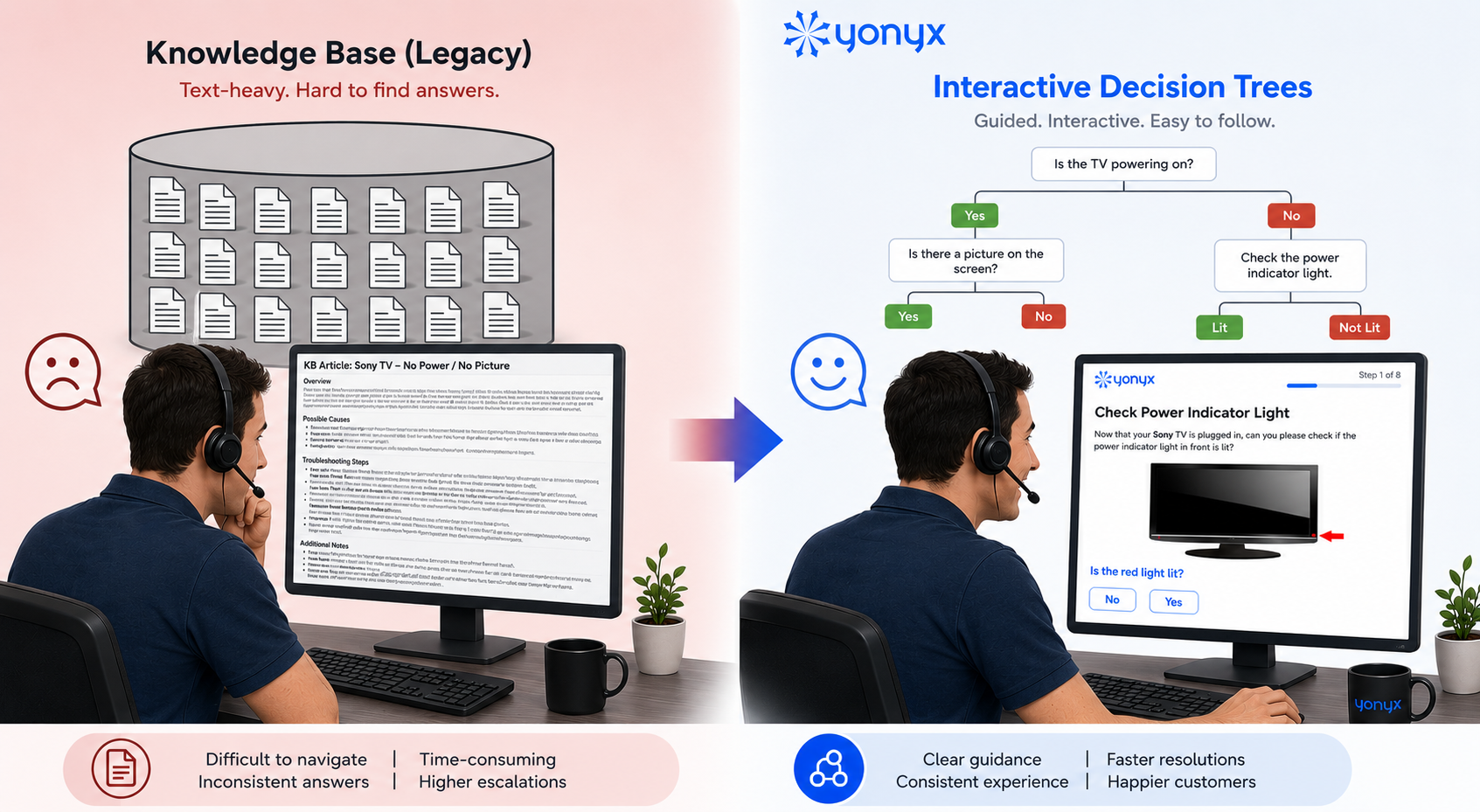
The obvious question becomes: how do you transition from a traditional knowledge base to a structured decision-tree-driven approach without disrupting ongoing operations? Where should you begin? Which articles should be converted first? How do you avoid investing months of effort building decision trees that may deliver limited operational value?
Transforming troubleshooting knowledge into structured decision trees does require some upfront thinking. Nevertheless, when approached strategically, the payoff can be enormous:
- faster resolution times
- reduced escalation rates
- improved consistency across support agents
- shorter onboarding cycles for new hires and
- significantly improved customer experience
The key is to avoid treating the transition as a massive “convert everything” project.
Review the Usage of Your Knowledge Base
The first step in transitioning from legacy knowledge base articles to interactive decision trees is to carefully analyze how your existing knowledge base is actually being used. Run usage reports for your articles and identify which content your support team relies upon most frequently during customer interactions.
In most organizations, you will quickly discover the classic 80/20 rule in action: roughly 80% of all article views typically come from only 20% of the articles in the knowledge base.
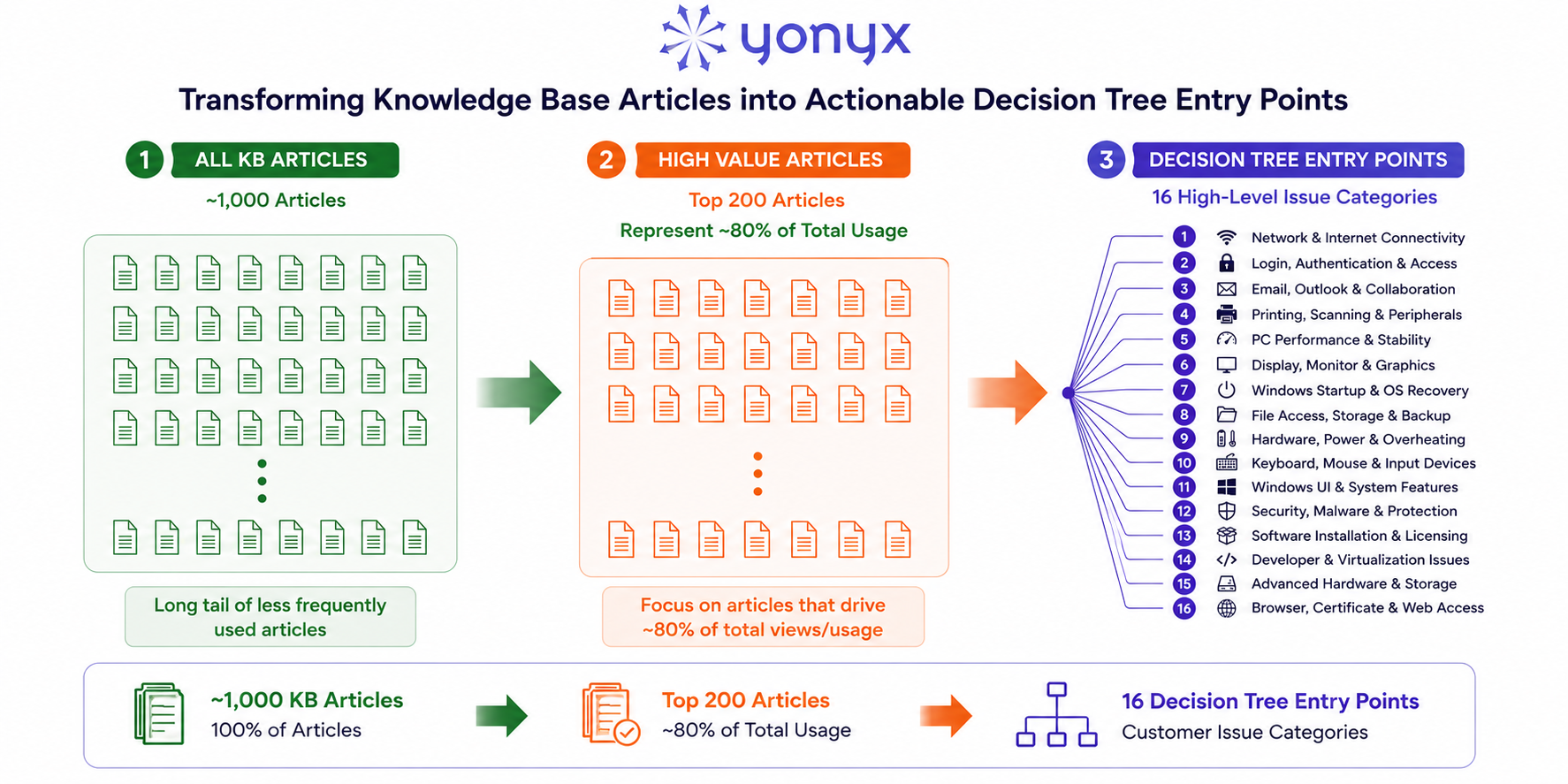
Now, if your knowledge base originally contained, say, a thousand articles, you may discover that only around 200 of those articles account for nearly 80% of all article views. Below is a list of 200 high usage PC troubleshooting knowledge base article titles, sorted by view count.
| Rank | Knowledge Base Article Title | View Count |
|---|---|---|
| 1 | Cannot Connect to Company VPN | 1510 |
| 2 | Slow Computer Performance | 1450 |
| 3 | Outlook Not Sending Emails | 1420 |
| 4 | Microsoft Teams Audio Issues | 1380 |
| 5 | VPN Connection Failure | 1350 |
| 6 | No Internet Connection on PC | 1320 |
| 7 | Account Locked Out | 1280 |
| 8 | Printer Not Responding | 1260 |
| 9 | Wi-Fi Keeps Disconnecting | 1180 |
| 10 | Domain Login Failure | 1180 |
| 11 | OneDrive Sync Issues | 1120 |
| 12 | Network Drive Disconnected | 1010 |
| 13 | Windows Update Failed | 980 |
| 14 | Outlook Search Not Working | 970 |
| 15 | Remote Desktop Connection Failed | 970 |
| 16 | Forgotten Windows Password | 950 |
| 17 | Unable to Access Shared Folder | 920 |
| 18 | Teams Screen Sharing Not Working | 910 |
| 19 | No Audio from Speakers | 890 |
| 20 | Application Keeps Crashing | 890 |
| 21 | VPN Disconnects Frequently | 880 |
| 22 | Network Printer Offline | 880 |
| 23 | Zoom Camera Not Working | 870 |
| 24 | Microphone Not Working | 840 |
| 25 | Slow Internet Speeds on PC | 840 |
| 26 | Webcam Not Detected | 790 |
| 27 | Chrome Running Slowly | 780 |
| 28 | Citrix Workspace Not Connecting | 780 |
| 29 | Computer Takes Long Time to Boot | 770 |
| 30 | Dual Monitor Setup Not Working | 760 |
| 31 | VPN Authentication Error | 760 |
| 32 | File Permissions Error | 740 |
| 33 | Zoom Meeting Lagging | 740 |
| 34 | PC Freezes Frequently | 720 |
| 35 | USB Device Not Recognized | 690 |
| 36 | Unable to Install Software | 690 |
| 37 | Unable to Join Domain | 690 |
| 38 | Email Attachment Not Downloading | 660 |
| 39 | Excel File Not Opening | 650 |
| 40 | MFA Prompt Not Appearing | 650 |
| 41 | Blue Screen Error During Startup | 620 |
| 42 | Multiple Monitors Not Detected | 620 |
| 43 | Bluetooth Device Not Connecting | 610 |
| 44 | Headset Microphone Not Detected | 610 |
| 45 | Outlook Calendar Not Syncing | 580 |
| 46 | USB-C Dock Not Working | 570 |
| 47 | Slow Login to Windows | 560 |
| 48 | PC Will Not Power On | 540 |
| 49 | Shared Printer Access Denied | 540 |
| 50 | Cannot Access Company Intranet | 530 |
| 51 | Disk Space Running Low | 520 |
| 52 | Limited Connectivity Warning | 520 |
| 53 | Keyboard Not Working | 510 |
| 54 | Disk Usage Stuck at 100% | 510 |
| 55 | Windows Search Not Responding | 510 |
| 56 | Cannot Open Shared Excel Workbook | 510 |
| 57 | Outlook Search Not Working | 490 |
| 58 | DNS Resolution Failure | 490 |
| 59 | Exchange Mailbox Connection Lost | 490 |
| 60 | Laptop Battery Not Charging | 480 |
| 61 | Monitor Showing No Signal | 470 |
| 62 | Laptop Battery Draining Quickly | 470 |
| 63 | Browser Keeps Crashing | 460 |
| 64 | VPN Required Application Access Denied | 460 |
| 65 | Audio Echo During Calls | 450 |
| 66 | PC Stuck in Boot Loop | 430 |
| 67 | Unable to Save Files to Network | 430 |
| 68 | High Memory Usage on PC | 420 |
| 69 | Start Menu Not Opening | 420 |
| 70 | Active Directory Authentication Error | 420 |
| 71 | Ethernet Connection Not Working | 410 |
| 72 | Cannot Print PDF Files | 390 |
| 73 | High CPU Usage by Unknown Process | 390 |
| 74 | Packet Loss During Video Calls | 390 |
| 75 | PC Randomly Restarts | 380 |
| 76 | Unable to Detect Wireless Network | 370 |
| 77 | Microsoft Office Activation Failed | 360 |
| 78 | Docking Station Ethernet Failure | 360 |
| 79 | Suspicious Pop-Ups Appearing | 340 |
| 80 | Frequent System Restarts | 340 |
| 81 | Charger Connected but Not Charging | 340 |
| 82 | Email Signature Missing | 340 |
| 83 | Mouse Cursor Freezing | 330 |
| 84 | Endpoint Protection Blocking File | 320 |
| 85 | Malware Infection Symptoms | 310 |
| 86 | USB Ports Not Working | 310 |
| 87 | Corrupted Operating System Files | 310 |
| 88 | Printer Driver Installation Failed | 310 |
| 89 | File Explorer Crashing | 300 |
| 90 | Computer Overheating | 290 |
| 91 | Screen Flickering on Laptop | 280 |
| 92 | Bluetooth Audio Stuttering | 280 |
| 93 | Software License Expired | 280 |
| 94 | External Hard Drive Not Detected | 270 |
| 95 | Laptop Screen Black After Login | 270 |
| 96 | Network Adapter Missing | 270 |
| 97 | Adobe Acrobat Crashes | 270 |
| 98 | Desktop Randomly Shuts Down | 260 |
| 99 | Firewall Blocking Application | 260 |
| 100 | HDMI Port Not Detecting Monitor | 260 |
| 101 | Corporate Firewall Restriction | 260 |
| 102 | PC Infected with Adware | 260 |
| 103 | Antivirus Software Not Updating | 250 |
| 104 | Windows Activation Error | 250 |
| 105 | Taskbar Frozen | 250 |
| 106 | Laptop Not Waking from Sleep | 250 |
| 107 | Laptop Touchpad Not Responding | 240 |
| 108 | Wi-Fi Driver Missing | 240 |
| 109 | Teams Presence Status Incorrect | 240 |
| 110 | Group Policy Not Applying | 240 |
| 111 | Dropbox Not Syncing | 230 |
| 112 | Keyboard Typing Incorrect Characters | 230 |
| 113 | AirPods Not Connecting to Laptop | 230 |
| 114 | PDF Files Opening Blank | 220 |
| 115 | SSL Connection Error | 220 |
| 116 | Missing DLL Error Message | 210 |
| 117 | Group Policy Error Message | 210 |
| 118 | Cloud Backup Not Completing | 210 |
| 119 | Windows Hello Not Working | 210 |
| 120 | Proxy Server Error | 210 |
| 121 | Spam Filter Blocking Valid Emails | 210 |
| 122 | Graphics Driver Installation Failed | 190 |
| 123 | Backup Job Failed | 190 |
| 124 | Missing Boot Device | 190 |
| 125 | Unable to Shut Down Computer | 190 |
| 126 | Word Document Formatting Corrupted | 180 |
| 127 | BitLocker Recovery Key Prompt | 180 |
| 128 | Browser Certificate Warning | 180 |
| 129 | Scanner Not Detected | 180 |
| 130 | Password Manager Not Syncing | 180 |
| 131 | Battery Percentage Incorrect | 170 |
| 132 | IP Address Conflict Detected | 170 |
| 133 | Git Authentication Failure | 170 |
| 134 | Loud Fan Noise from PC | 160 |
| 135 | Windows Defender Disabled | 160 |
| 136 | Touchscreen Not Responding | 160 |
| 137 | Virtual Machine Fails to Start | 160 |
| 138 | NVIDIA Driver Crashing | 150 |
| 139 | PST File Corruption Detected | 150 |
| 140 | Browser Redirect Virus | 140 |
| 141 | Display Resolution Cannot Be Changed | 140 |
| 142 | RAM Not Detected | 140 |
| 143 | Cannot Connect to Guest Wi-Fi | 140 |
| 144 | Corrupted ZIP File Error | 140 |
| 145 | Docker Desktop Not Starting | 140 |
| 146 | Computer Running Very Hot | 130 |
| 147 | CPU Temperature Warning | 130 |
| 148 | Browser Autofill Not Working | 130 |
| 149 | Windows Login Screen Missing | 120 |
| 150 | Sleep Mode Causes Black Screen | 120 |
| 151 | Webcam Image Blurry | 120 |
| 152 | SAP GUI Not Launching | 120 |
| 153 | SSH Connection Refused | 120 |
| 154 | Fan Running Constantly | 110 |
| 155 | Unable to Restore System Backup | 110 |
| 156 | Smart Card Authentication Failed | 110 |
| 157 | Hotspot Connection Failure | 110 |
| 158 | Visual Studio Build Failure | 110 |
| 159 | PowerPoint Crashes on Launch | 95 |
| 160 | Corrupted User Profile | 95 |
| 161 | SSD Performance Degraded | 95 |
| 162 | Failed Windows Reset | 95 |
| 163 | QuickBooks Database Connection Failed | 95 |
| 164 | PowerShell Execution Policy Error | 95 |
| 165 | Ransomware Warning Detected | 90 |
| 166 | Hibernate Mode Not Working | 90 |
| 167 | Laptop Keyboard Backlight Not Working | 90 |
| 168 | Python Environment Broken | 90 |
| 169 | Fingerprint Reader Failure | 85 |
| 170 | AMD Driver Timeout Error | 80 |
| 171 | Secure Boot Error | 80 |
| 172 | Java Runtime Missing | 80 |
| 173 | Sticky Keys Enabled Accidentally | 75 |
| 174 | Memory Upgrade Causing Crashes | 75 |
| 175 | Windows Terminal Not Opening | 75 |
| 176 | Hard Drive Making Clicking Noise | 70 |
| 177 | Windows Recovery Stuck | 70 |
| 178 | Scheduled Task Not Running | 70 |
| 179 | PC Beeping During Startup | 65 |
| 180 | Hard Drive SMART Error | 65 |
| 181 | VMware Network Adapter Missing | 65 |
| 182 | TPM Module Not Detected | 60 |
| 183 | System Clock Out of Sync | 60 |
| 184 | BIOS Update Failure | 55 |
| 185 | Time and Date Resetting Automatically | 55 |
| 186 | Unable to Create New User Account | 55 |
| 187 | Fan Error Message on Startup | 55 |
| 188 | AutoCAD License Error | 55 |
| 189 | SSD Not Detected in BIOS | 45 |
| 190 | Motherboard Diagnostic Lights On | 45 |
| 191 | Stylus Pen Not Pairing | 45 |
| 192 | Hyper-V Virtual Switch Error | 45 |
| 193 | CMOS Battery Failure | 40 |
| 194 | Cannot Access Encrypted Files | 40 |
| 195 | Facial Recognition Camera Error | 40 |
| 196 | Windows Safe Mode Not Working | 35 |
| 197 | RAID Array Failure | 30 |
| 198 | Recovery Environment Missing | 25 |
| 199 | Thermal Paste Replacement Needed | 25 |
| 200 | Caps Lock Indicator Not Working | 20 |
While this provides an excellent starting point, it still does not reflect how an experienced technical support agent – one who has all the troubleshooting knowledge in their head – would naturally assist customers.
Such an agent does not think in terms of hundreds of individual articles. Instead, the conversation typically begins with a small number of high-level customer issues, symptoms, or problem descriptions.
Derive Entry Points
Our objective now is to reduce these 200 article titles into a much smaller set of decision tree entry points that align with how real customer interactions begin, namely, when the support agent asks, “How can I help you today?”, what are the handful of issue categories or symptoms the customer is most likely to describe?
Let us now feed these 200 article titles to an LLM like ChatGPT or Gemini. Use the prompt below.
LLM Prompt:
Review this list of knowledge base article titles. Each row contains three columns: Serial Number, Article Title, and View Count. The View Count represents the frequency of access by our technical support team during a 30 days period.
I want to consolidate these articles into a smaller set of interactive decision tree starting points. The goal is that when a customer calls and the support agent asks, “How can I help you today?”, each decision tree entry point should represent a broad customer issue category or likely reason for the call.
Analyze the article titles and group related troubleshooting topics together into logical decision tree entry points that can serve as high-level customer issue categories. Prioritize issue categories by adding the view counts of all component articles.
Now give me a table with four columns – serial number, Decision Tree title, Knowledge Base Article Titles consolidated under the decision tree title (one article in each row), and Total View count (obtained by adding the view counts for each component article). The LLM should give you a table that looks like this.
Decision Tree # 1: Network & Internet Connectivity Issues; Views: 17,380
- VPN Connection Failure
- VPN Disconnects Frequently
- VPN Authentication Error
- VPN Required Application Access Denied
- No Internet Connection on PC
- Wi-Fi Keeps Disconnecting
- Ethernet Connection Not Working
- Unable to Detect Wireless Network
- DNS Resolution Failure
- IP Address Conflict Detected
- Limited Connectivity Warning
- Slow Internet Speeds on PC
- Network Adapter Missing
- Wi-Fi Driver Missing
- Hotspot Connection Failure
- Cannot Connect to Guest Wi-Fi
- Proxy Server Error
- Packet Loss During Video Calls
- Cannot Access Company Intranet
Decision Tree # 2: Login, Authentication & Access Problems; Views: 8,660
- Forgotten Windows Password
- Domain Login Failure
- Unable to Join Domain
- Active Directory Authentication Error
- MFA Prompt Not Appearing
- Smart Card Authentication Failed
- Windows Hello Not Working
- Fingerprint Reader Failure
- Facial Recognition Camera Error
- BitLocker Recovery Key Prompt
- Cannot Access Encrypted Files
Decision Tree # 3: Email, Outlook & Collaboration Tools; Views: 8,360
- Outlook Search Not Working
- Outlook Calendar Not Syncing
- Exchange Mailbox Connection Lost
- PST File Corruption Detected
- Email Attachment Not Downloading
- Email Signature Missing
- Microsoft Teams Audio Issues
- Teams Screen Sharing Not Working
- Teams Presence Status Incorrect
- Zoom Camera Not Working
- Zoom Meeting Lagging
- Webcam Not Detected
- Webcam Image Blurry
- Microphone Not Working
- No Audio from Speakers
- Audio Echo During Calls
- Headset Microphone Not Detected
- Bluetooth Audio Stuttering
- AirPods Not Connecting to Laptop
Decision Tree # 4: Printing, Scanning & Peripheral Devices; Views: 4,780
- Network Printer Offline
- Shared Printer Access Denied
- Cannot Print PDF Files
- Printer Driver Installation Failed
- Scanner Not Detected
- Fax Service Not Responding
- USB Device Not Recognized
- USB Ports Not Working
- External Hard Drive Not Detected
- USB-C Dock Not Working
- Docking Station Ethernet Failure
Decision Tree # 5: PC Performance, Freezing & Stability Issues; Views: 3,990
- PC Freezes Frequently
- Application Keeps Crashing
- Browser Keeps Crashing
- Chrome Running Slowly
- High CPU Usage by Unknown Process
- High Memory Usage on PC
- Disk Usage Stuck at 100%
- Computer Takes Long Time to Boot
- Slow Login to Windows
- Frequent System Restarts
- PC Randomly Restarts
- Unable to Shut Down Computer
Decision Tree # 6: Display, Monitor & Graphics Issues; Views: 3,520
- Multiple Monitors Not Detected
- Monitor Showing No Signal
- HDMI Port Not Detecting Monitor
- Display Resolution Cannot Be Changed
- Screen Flickering on Laptop
- Laptop Screen Black After Login
- Graphics Driver Installation Failed
- NVIDIA Driver Crashing
- AMD Driver Timeout Error
Decision Tree # 7: Windows Startup, Boot & OS Recovery Issues; Views: 3,420
- PC Will Not Power On
- PC Stuck in Boot Loop
- Missing Boot Device
- Windows Login Screen Missing
- Windows Recovery Stuck
- Failed Windows Reset
- Recovery Environment Missing
- Corrupted Operating System Files
- Windows Safe Mode Not Working
- BIOS Update Failure
- Secure Boot Error
- TPM Module Not Detected
Decision Tree # 8: File Access, Storage & Backup Issues; Views: 3,350
- Dropbox Not Syncing
- Unable to Access Shared Folder
- Network Drive Disconnected
- File Permissions Error
- Unable to Save Files to Network
- Cannot Open Shared Excel Workbook
- Cloud Backup Not Completing
- Backup Job Failed
- Unable to Restore System Backup
- Corrupted ZIP File Error
Decision Tree # 9: Hardware, Power & Overheating Issues; Views: 2,845
- Laptop Battery Draining Quickly
- Charger Connected but Not Charging
- Battery Percentage Incorrect
- Computer Overheating
- Computer Running Very Hot
- CPU Temperature Warning
- Loud Fan Noise from PC
- Fan Running Constantly
- Fan Error Message on Startup
- Thermal Paste Replacement Needed
- CMOS Battery Failure
Decision Tree # 10: Keyboard, Mouse & Input Device Issues; Views: 1,965
- Keyboard Typing Incorrect Characters
- Mouse Cursor Freezing
- Laptop Touchpad Not Responding
- Sticky Keys Enabled Accidentally
- Caps Lock Indicator Not Working
- Laptop Keyboard Backlight Not Working
- Touchscreen Not Responding
- Stylus Pen Not Pairing
Decision Tree # 11: Windows UI & System Feature Problems; Views: 1,850
- Start Menu Not Opening
- Taskbar Frozen
- File Explorer Crashing
- Corrupted User Profile
- Group Policy Error Message
- Group Policy Not Applying
- Unable to Create New User Account
Decision Tree # 12: Security, Malware & Endpoint Protection Issues; Views: 1,740
- Suspicious Pop-Ups Appearing
- Browser Redirect Virus
- Ransomware Warning Detected
- Windows Defender Disabled
- Antivirus Software Not Updating
- Endpoint Protection Blocking File
- PC Infected with Adware
Decision Tree # 13: Software Installation, Licensing & Activation; Views: 1,560
- Windows Activation Error
- Microsoft Office Activation Failed
- Software License Expired
- Adobe Acrobat Crashes
- AutoCAD License Error
- QuickBooks Database Connection Failed
- SAP GUI Not Launching
Decision Tree # 14: Software Installation, Licensing & Activation; Views: 1,025
- Virtual Machine Fails to Start
- Hyper-V Virtual Switch Error
- VMware Network Adapter Missing
- Git Authentication Failure
- SSH Connection Refused
- Python Environment Broken
- Java Runtime Missing
- Visual Studio Build Failure
- Windows Terminal Not Opening
- PowerShell Execution Policy Error
Decision Tree # 15: Advanced Hardware & Storage Failures; Views: 825
- SSD Not Detected in BIOS
- RAM Not Detected
- Memory Upgrade Causing Crashes
- SSD Performance Degraded
- Hard Drive SMART Error
- RAID Array Failure
- Motherboard Diagnostic Lights On
- PC Beeping During Startup
Decision Tree # 16: Browser, Certificate & Web Access Issues; Views: 570
- Browser Certificate Warning
- SSL Connection Error
- Browser Autofill Not Working
- Corporate Firewall Restriction
Now you have compressed the 1,000 Articles to 200 high usage articles to 16 decision tree entry points as shown below.
Assign Decision Trees to Authors
Decision trees your team eventually creates will be published via a Yonyx Landing Page. A landing page is a configurable portal per line of business, that displays decision tree entry points organized into catalogs, enabling technical support team members to browse, search, and interactively traverse troubleshooting decision trees from a single page interface.
Keeping the final landing-page presentation of your decision trees in mind, create your Authoring Plan similar to the one shown below. Assign each decision tree to an Author who is ideally a subject matter expert (SME) for that specific area. In the table below, the assigned contributors are labeled as Author1, Author2, and so on.
The “% of Total Views” column is derived by dividing the “Total View Count” for each decision tree topic by the sum total of all article views across the knowledge base. This gives an indication of the relative popularity of each decision tree topic and helps prioritize authoring efforts.
The “Complexity” column may be categorized as Simple, Medium, or Complex. This classification is intended only to help Authors estimate the amount of calendar time they may need to complete the work alongside their other responsibilities. In the sample plan below, a Simple decision tree is estimated to require approximately 1 calendar week, a Medium complexity one – 2 calendar weeks, and a Complex decision tree – 4 calendar weeks.
Finally the Start and End dates simply help with a rough timeline for the effort.
| Name of Catalog | Guide Title | Author | % of Total Views | Complexity | Start-Date | End-Date |
| Catalog1 | ||||||
| Network & Internet Connectivity Issues | Author1 | 24% | Medium | 4/21/26 | 5/5/26 | |
| Login, Authentication & Access Problems | Author2 | 12% | Complex | 4/21/26 | 5/19/26 | |
| Email, Outlook & Collaboration Tools | Author1 | 11% | Simple | 5/5/26 | 5/12/26 | |
| Catalog2 | ||||||
| Printing, Scanning & Peripheral Devices | Author3 | 7% | Medium | 4/21/26 | 5/5/26 | |
| PC Performance, Freezing & Stability Issues | Author3 | 9% | Complex | 5/5/26 | 6/2/26 | |
| Display, Monitor & Graphics Issues | Author3 | 6% | Simple | 6/2/26 | 6/9/26 | |
| Windows Startup, Boot & OS Recovery Issues | Author1 | 5% | Simple | 5/12/26 | 5/19/26 | |
| Catalog3 | ||||||
| File Access, Storage & Backup Issues | Author2 | 6% | Medium | 5/19/26 | 6/2/26 | |
| Hardware, Power & Overheating Issues | Author2 | 4% | Complex | 6/2/26 | 6/30/26 | |
| Keyboard, Mouse & Input Device Issues | Author2 | 3% | Simple | 6/30/26 | 7/7/26 | |
| Windows UI & System Feature Problems | Author1 | 3% | Simple | 5/19/26 | 5/26/26 | |
| Security, Malware & Endpoint Protection Issues | Author3 | 2% | Complex | 6/9/26 | 7/7/26 |
Build Decision Trees
Authors now learn the Yonyx decision tree authoring platform to create the decision trees. Authors use their experience, knowledge and refer the information contained in the knowledge base articles.
Decision trees typically begin with the symptom reported by the customer – for example, “I need help with a connectivity issue.” From there, the tree guides the user through step-by-step troubleshooting to identify the underlying root cause and, ultimately, the corresponding solution.
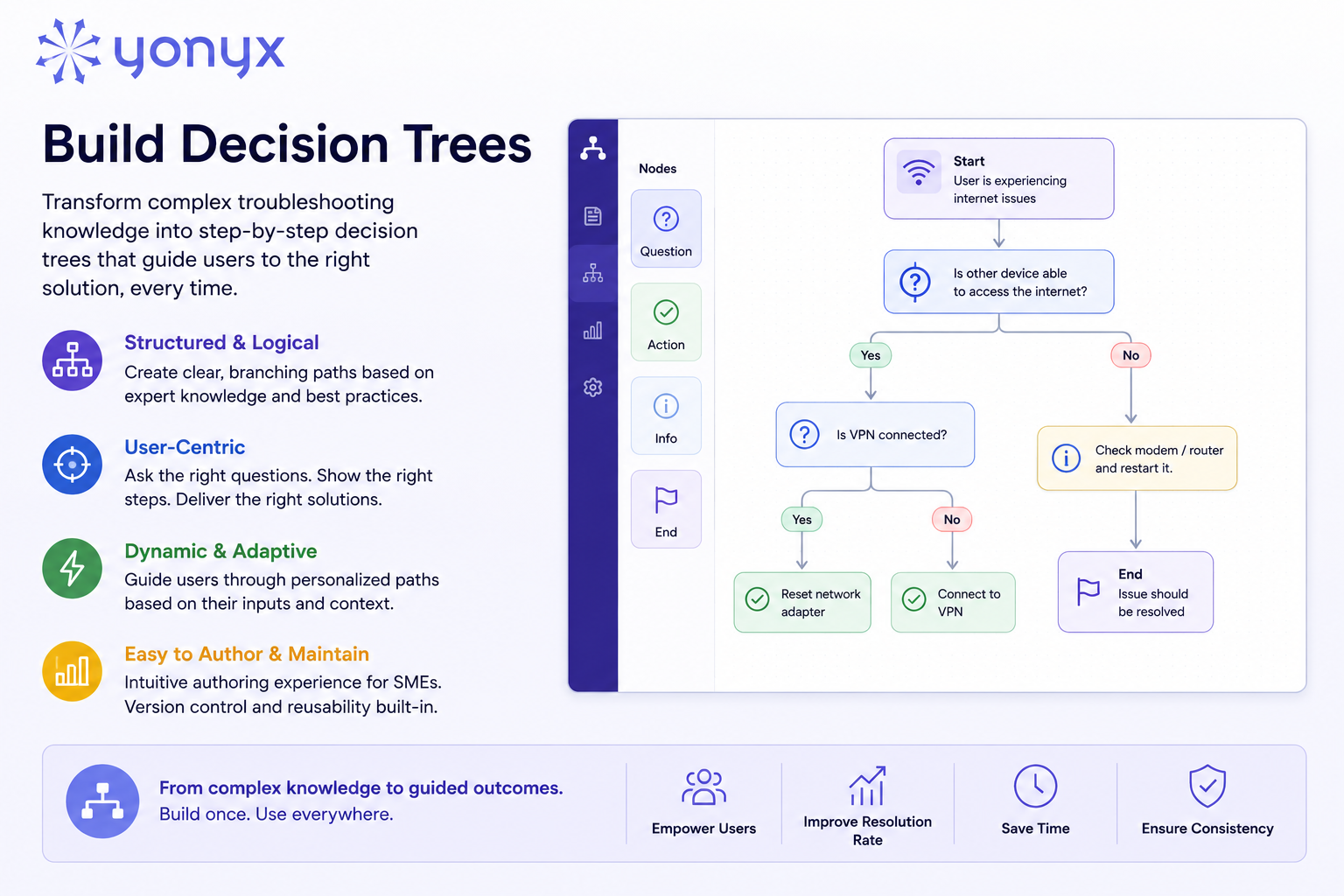
Some troubleshooting steps may themselves require traversing another decision tree. Thus, a step that instructs the user to restart a machine, may require following a restart procedure that varies based on the machine’s Make, Year, and Model. In such cases, the Author can create a standalone decision tree for “How to Restart the Machine” and hand off to that tree from the “Reset” step of the parent tree. Click Here to learn more about how such a handoff from a Parent tree to a Child tree and return back to Parent tree is accomplished.
Roll out of Decision Trees
You should avoid rolling out decision trees to your entire team until you have created trees that cover a significant percentage of customer calls. For example, if decision trees address only 15% of incoming calls, the support team will quickly notice that trees are not available for most call types. As a result, adoption and engagement will decline – even for call types where decision trees do exist.
To drive strong adoption and maintain mindshare within the team, it is important to launch broadly only after decision trees can support at least 50% of all call types. Reaching this level of coverage is more likely to encourage regular usage and generate valuable feedback from users.
Continuous Improvement Through User Feedback
Collecting feedback and continuously updating decision trees is essential to keeping them accurate, relevant, and up to date. Therefore, soon after deployment, you should encourage technical support team members to actively use the built-in feedback feature within the Yonyx platform.
In addition, Yonyx includes a built-in ticketing system to track feedback received for each guide. Every piece of feedback submitted automatically creates a task containing valuable metadata, including:
- The name of the technical support engineer who submitted the feedback
- The date and time the feedback was provided
- The exact steps traversed by the user, including the step they were on when the feedback was submitted
- The actual feedback message — for example, “This link is broken”
- Any data captured along the way
- Amount of time spent by the user at each step.
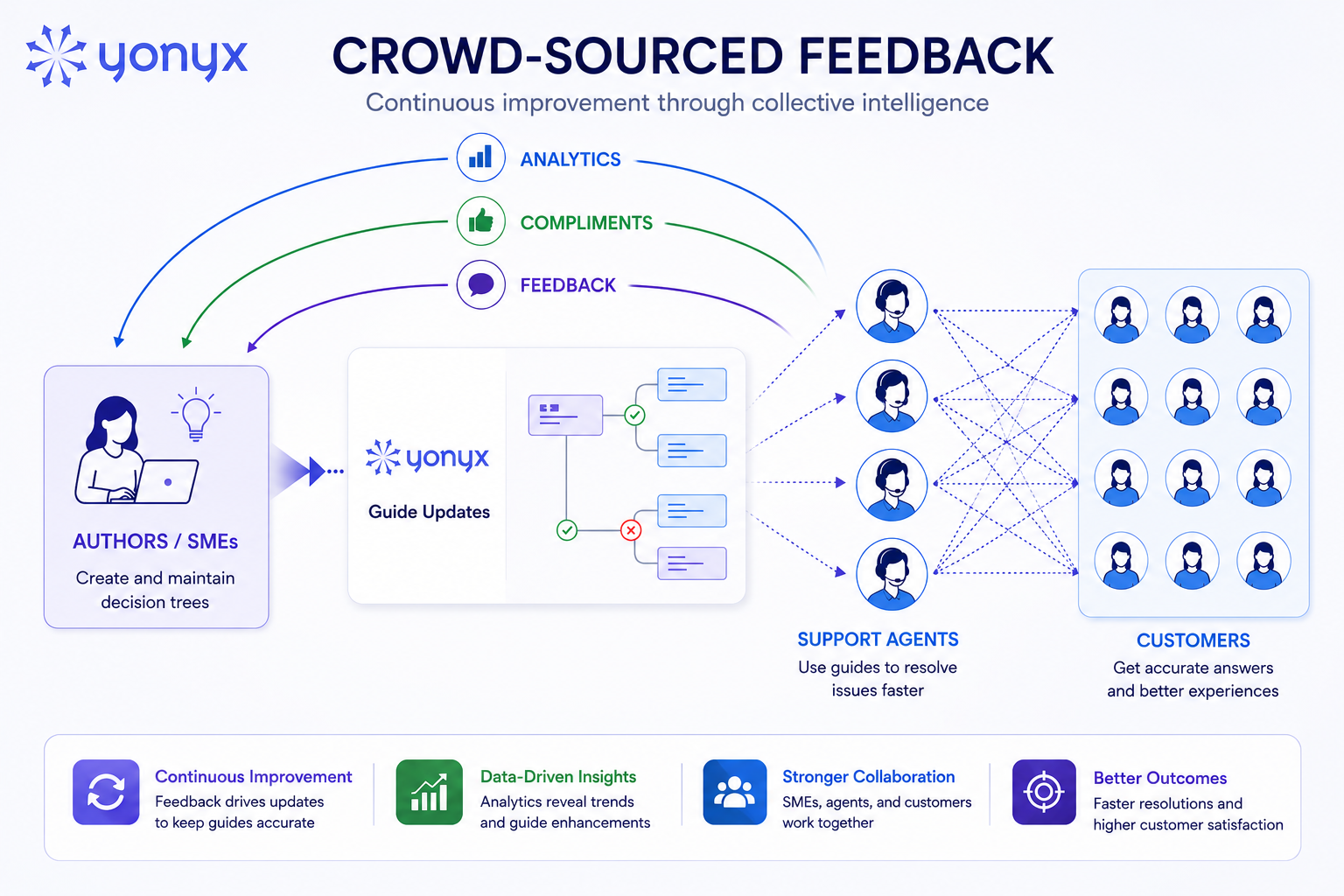
This feedback can then be used by the Author to continuously improve the decision trees. The Author can add comments to each feedback task and mark the issue as resolved. Once resolved, Yonyx automatically sends an email notification to the user who submitted the feedback and moves the task from the Pending tasks list to the Resolved tasks list. Click Here to learn more about User Feedback workflow.
Improvement Through Cumulative Traversal Analytics
Each time a user traverses a node within a decision tree, Yonyx records a view against that specific node. Over time, these cumulative traversal analytics across all branches of the decision tree become an extremely powerful mechanism for evaluating effectiveness of the guide and identifying opportunities for improvement.
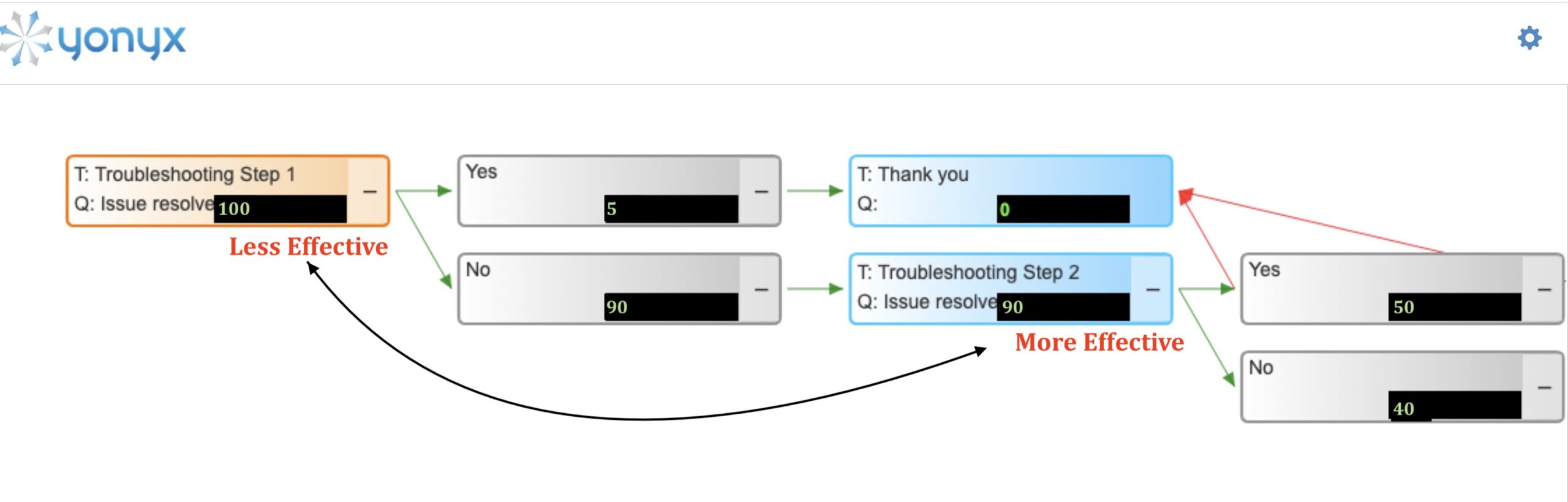
Consider the example shown above. The first troubleshooting step appears to have very little impact on resolving customer issues, while the second step appears to be significantly more effective. If the sequence of these two steps were reversed so that agents reached the more effective step earlier in the customer interaction, the productivity gains across the entire support organization could be substantial.
Conclusion: From Articles to Guided Troubleshooting
Ultimately, moving from traditional knowledge base articles to interactive decision trees is far more than a documentation upgrade — it is a transformation in how technical support knowledge is delivered and operationalized. Instead of forcing agents to search through lengthy articles and mentally piece together troubleshooting logic, decision trees provide structured, guided workflows that mirror real customer conversations.
This article has outlined a practical and highly achievable transition path from traditional knowledge base articles to interactive decision trees — without requiring a technical support organization to rebuild its entire knowledge system all at once. Instead of attempting a massive “boil the ocean” conversion effort, the approach focuses first on identifying the small percentage of articles that drive the majority of support activity. By applying the 80/20 rule, organizations can prioritize high-impact troubleshooting scenarios, consolidate overlapping articles into a smaller number of customer issue categories, and progressively build decision trees that deliver the highest operational ROI. This incremental approach allows organizations to modernize support workflows while continuing to leverage their existing knowledge base during the transition.
More importantly, the article highlights how interactive decision trees provide an entirely new level of operational intelligence compared to traditional knowledge bases. Legacy KB systems could typically measure only simple article view counts — offering little insight into whether an article actually helped resolve the issue and if so, which paragraph within the article was the most relevant? In contrast, Yonyx cumulative traversal analytics provide deep visibility into how troubleshooting workflows perform in the real world. Organizations can identify which paths consistently lead to successful resolutions, where agents hesitate or escalate calls, which troubleshooting steps are ineffective, and how workflows can be optimized for speed and accuracy. Combined with node-level feedback from agents and customers, this creates a powerful continuous-improvement system where every interaction contributes to making the decision trees smarter, more efficient, and more aligned with real-world support scenarios over time.